Some time ago I upgraded my computer to Windows 10. Because I tend to have a lot of data in my home directory I decided to move Users from SSD C: to HDD D: (by creating a junction from C:\Users to D:\Users as described for example here). And it was all well and good until Windows updates started failing. First it was KB3116869 then KB3124266. Not only they were failing, they also tried to install over and over again. Every day I was getting notifications that an update was available and I had to select time to reboot my computer. Provided that I usually have my computer running all the time with some program started, some browser tabs open, and so on it was a bit inconvenient.
So I decided to investigate the issue. Unfortunately Windows Update logs didn’t tell me much. But eventually I found a record in System Event Log saying “Installation Failure: Windows failed to install the following update with error 0x80070011: Security Update for Windows (KB3124266).” That’s something. Quick Internet search showed that this error code means ERROR_NOT_SAME_DEVICE. Then I tried to search for this error code in all files inside C:\Windows\Logs directory and found these lines in some of them:
2016-01-30 18:18:39, Error CSI 00000737 (F) Volume serial # mismatch. Tempdir is (path:[l:44{22}]"\??\C:\$$PendingFiles\", serial:4237660551 (0xfc959187)). Target is (path:[l:200{100}]"\??\C:\Users\Default\AppData\Roaming\Microsoft\Windows\Start Menu\Programs\Accessibility\desktop.ini", serial:1186847439 (0x46bddacf))
And next lines were mentioning magical number 0x80070011 and the error STATUS_NOT_SAME_DEVICE. So it looked like somebody was trying to find desktop.ini inside C:\Users\Default directory but because C:\Users was pointing to D:\Users the file was actually on drive D:! Hence the “Not same device” error.
To fix this issue but still have my files on the HDD I decided to move \Users directory back to C: but keep my personal files (\Users\Andrey) on drive D:. The simplest way to do this is to copy back the whole \Users directory, delete C:\Users\Andrey, and create a link from C:\Users\Andrey to D:\Users\Andrey using:
rmdir /S /Q E:\Users\Andrey

mklink /J E:\Users\Andrey D:\Users\Andrey
(make sure you use correct drive letters!)
This would only work though if there is enough space on disk C: to temporarily hold the current user directory (or you can move files away while doing this and then move them back). If there is not enough space then another way is to create empty C:\Users directory (which was E:\Users in my Repair Command Prompt) and then copy all users back to it except the main one. After which create a junction the same way as before.
This method requires less free space but it has to be done very carefully because some users are hidden. For example in my system if I just execute “dir \Users” command it gives me this:
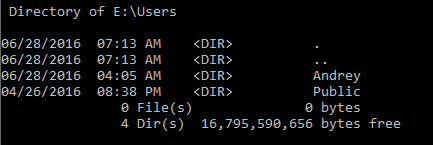
However if I execute “dir /a:h \Users” (show hidden files) I see three hidden directory, one of which is symlink and another one is junction:

This means that “Public” and “Default” directories should be copied but “All Users” and “Default User” should be created as symlink and junction respectively.
Of cause if nothing is copied yet it makes sense to move only on directory to the second drive (“C:\Users\Andrey” in my case) instead of the whole “C:\Users” hierarchy. This is what I will do the next time.
And please, before making any such changes create a restore point and backup files you don’t want to loose in case something goes wrong.